

AI Blueprint has two approval moments: Idea Review / VPC Sign Approve starts document generation, while Sign Approve Blueprint accepts the complete reviewed document set and unlocks Project ZIP.
1. Create an account and sign in
Register with email and password or select Continue with Google.- Email registration requires you to open the verification link before signing in.
- Google sign-in returns you to AI Blueprint after Google authentication.
- When prompted, review and accept the current Terms, Privacy Policy, and Refund Policy.
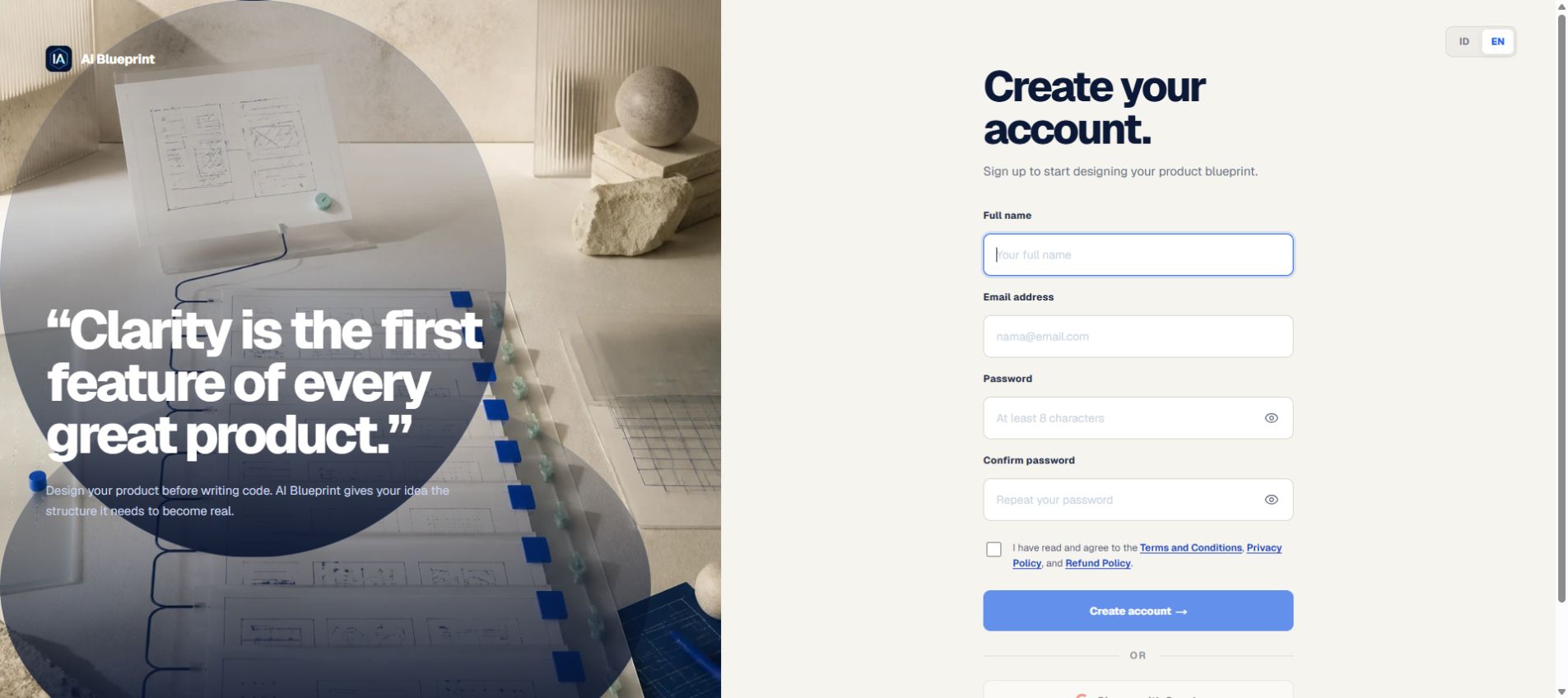
Sanitized registration and Google sign-in choices.
2. Choose free or paid access
An eligible new account can use its one-time ordinary free preview. It runs through App Map in read-only mode and does not include the Assistant, downloads, final approval, or Project ZIP. A trial-credit coupon is different: it supplies the displayed promotional credits and unlocks the full workspace for seven days. For paid access, choose Starter or Plus and select the catalogue currency. IDR uses Midtrans; USD uses PayPal. Pricing and Billing offer the same selector.aiblueprint.web.id initially selects IDR and aiblueprintapp.com initially selects USD, but either domain can use either currency. Top-ups become available from Billing only after a paid plan is active.
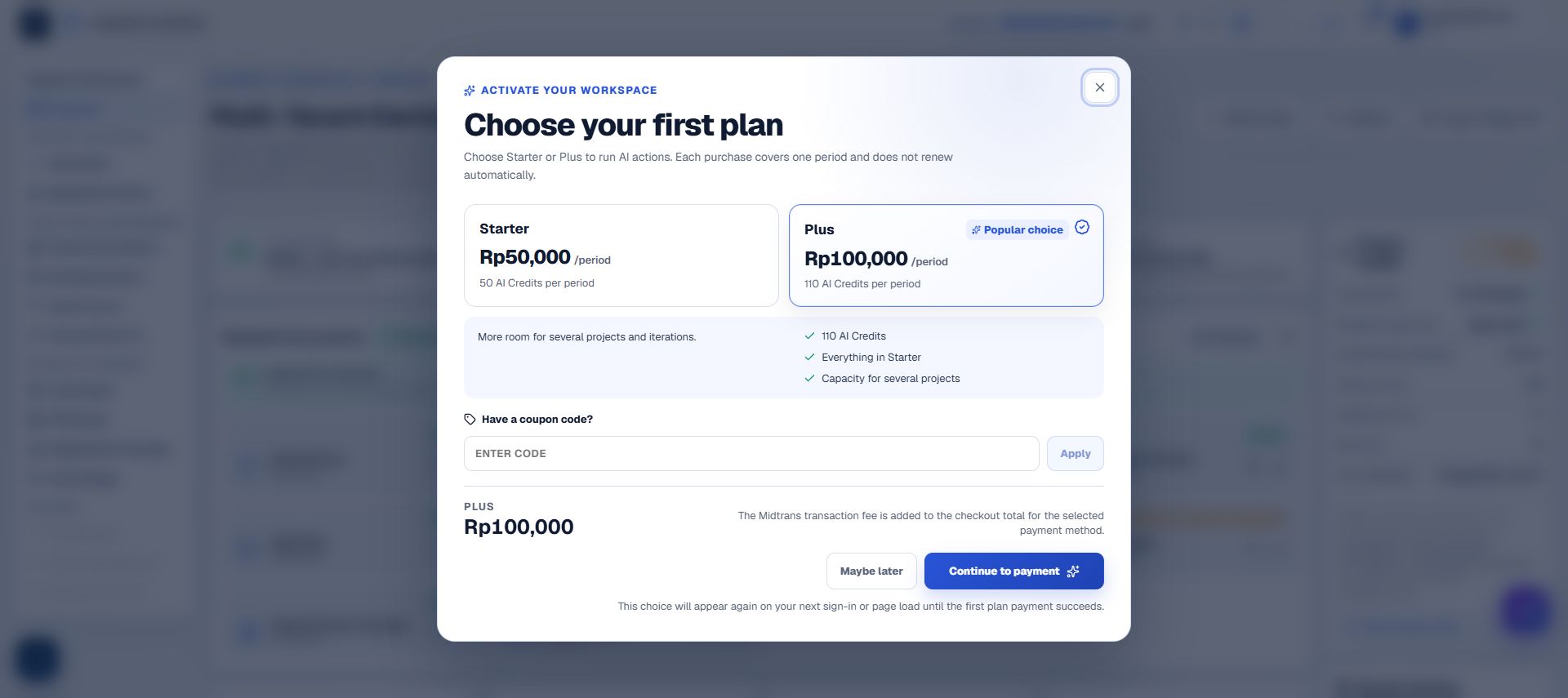
First-plan selector shown automatically after sign-in.
3. Describe the idea in its intended output language
On Dashboard, describe the users, problem, outcome, main workflow, boundaries, and important constraints. AI Blueprint detects the dominant language of the submitted idea and uses it for generated documents. The ID/EN workspace toggle changes the interface language; it is not an output-language selector for the idea. Use one clear primary language in the idea. Mixed-language product names or technical terms are fine when the surrounding brief makes the intended language clear. Below the idea section, Recent Blueprints displays up to four cards in one row. Select View all to open My Blueprints. Workspace activity appears after this separate section.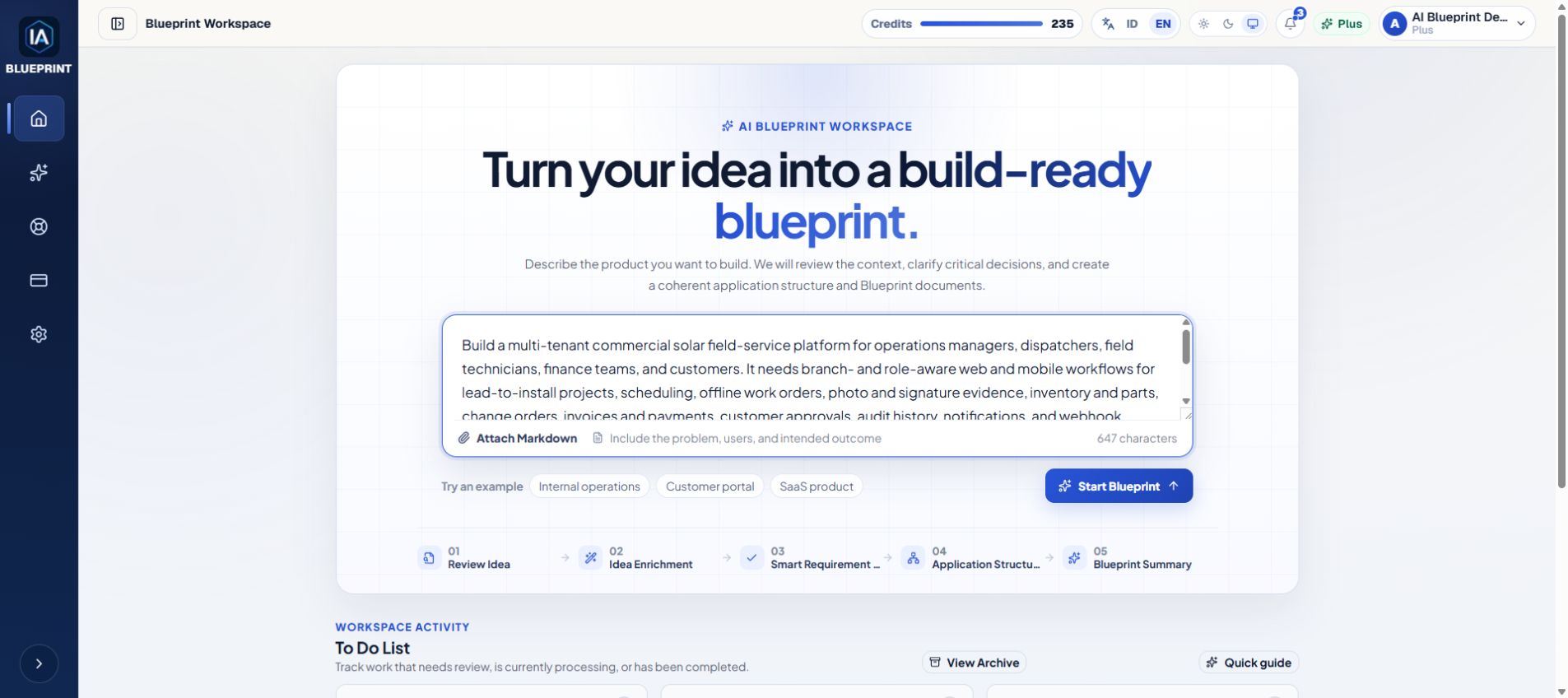
Idea input uses automatic language detection.
4. Review decisions and approve the VPC
Read the Smart Requirement Summary and answer the critical questions. AI recommendations are suggestions; confirm the option that represents your decision. Select Idea Review / VPC Sign Approve only when the context is accurate. This locks the validated context and automatically starts document generation.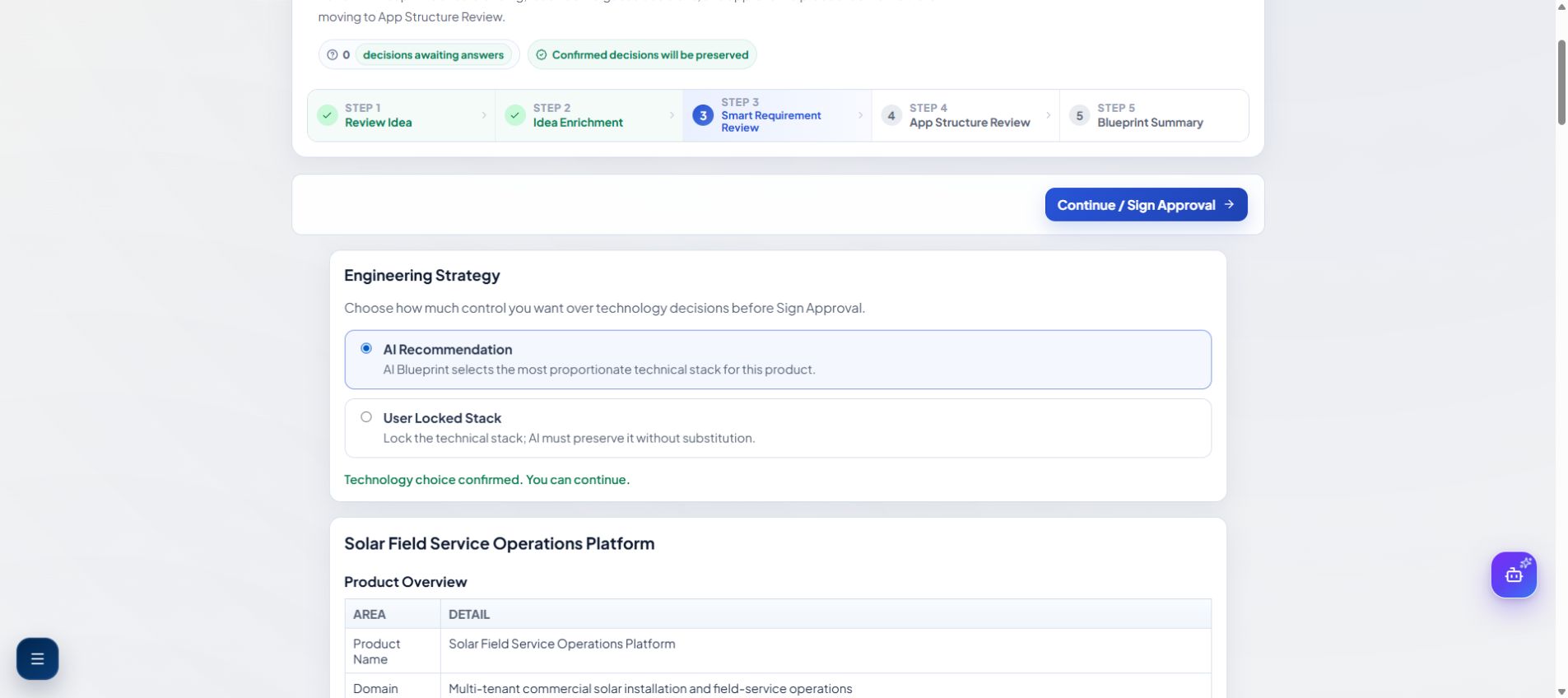
Product-context review before generation starts.
5. Follow generation in Blueprint Summary
After VPC approval, Blueprint Summary opens. Each document being processed shows a spinner, and Project Health shows Generating. While this page remains open, it checks the stored generation state periodically and updates completed document cards and Project Health without a full-page refresh. Work continues on the server if you close the tab. Wait for generation to finish before reviewing the final current versions. Do not create a duplicate Blueprint because one stage takes longer than another.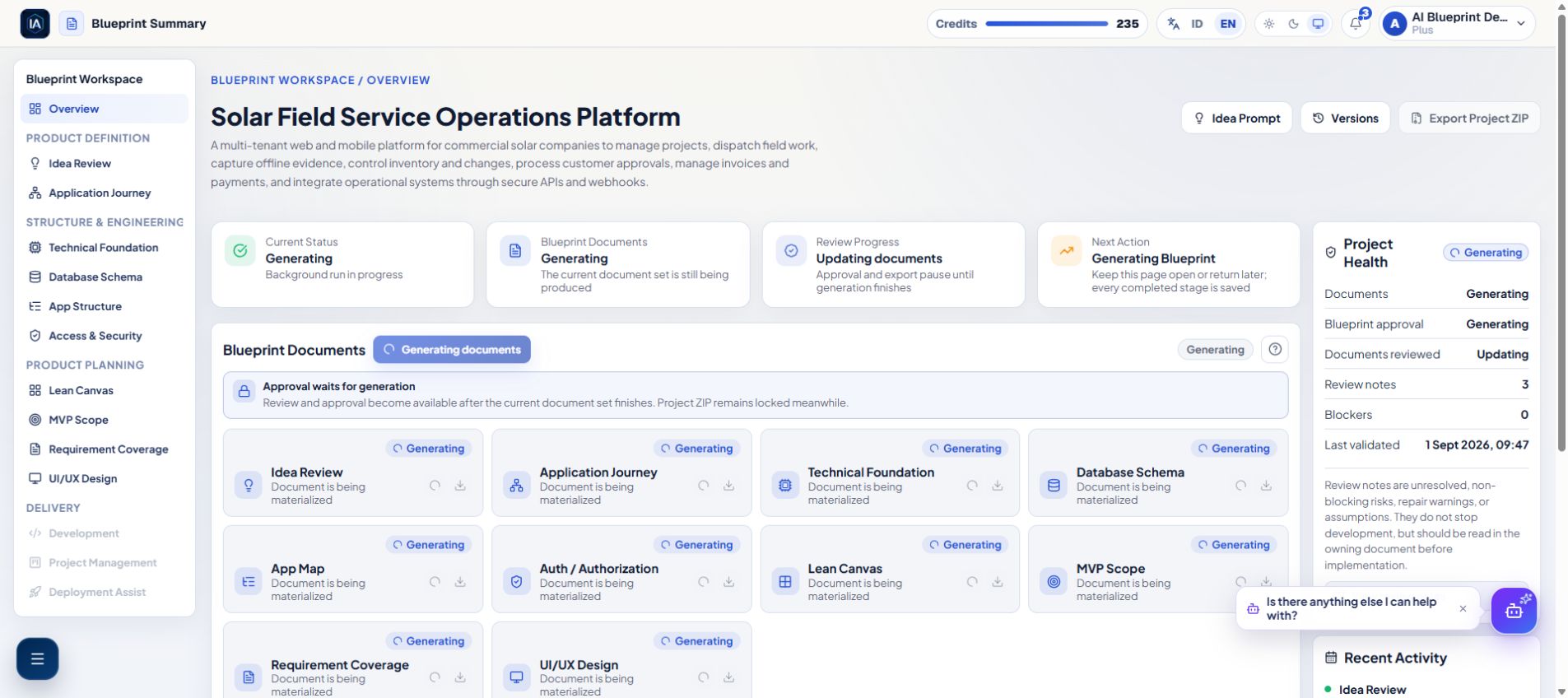
Per-document and Project Health generation indicators.
6. Review every document and its review notes
Open each of the 10 current document cards. The card changes from Not yet reviewed to Reviewed when the current version opens. This records review; it is not a signature. Open a Not Required stub once as well. Ready — your decision needed appears only when the owning document contains an explicit decision you can act on. Open that document to read the decision and its next action. A reviewed document with no genuine open decision uses the green Ready status; review state and content status remain separate. In Project Health, select View review notes to open the review-notes dialog. A note is a visible risk, assumption, decision, or repair warning. Reading a note does not silently resolve it; use the owning document to understand the next action.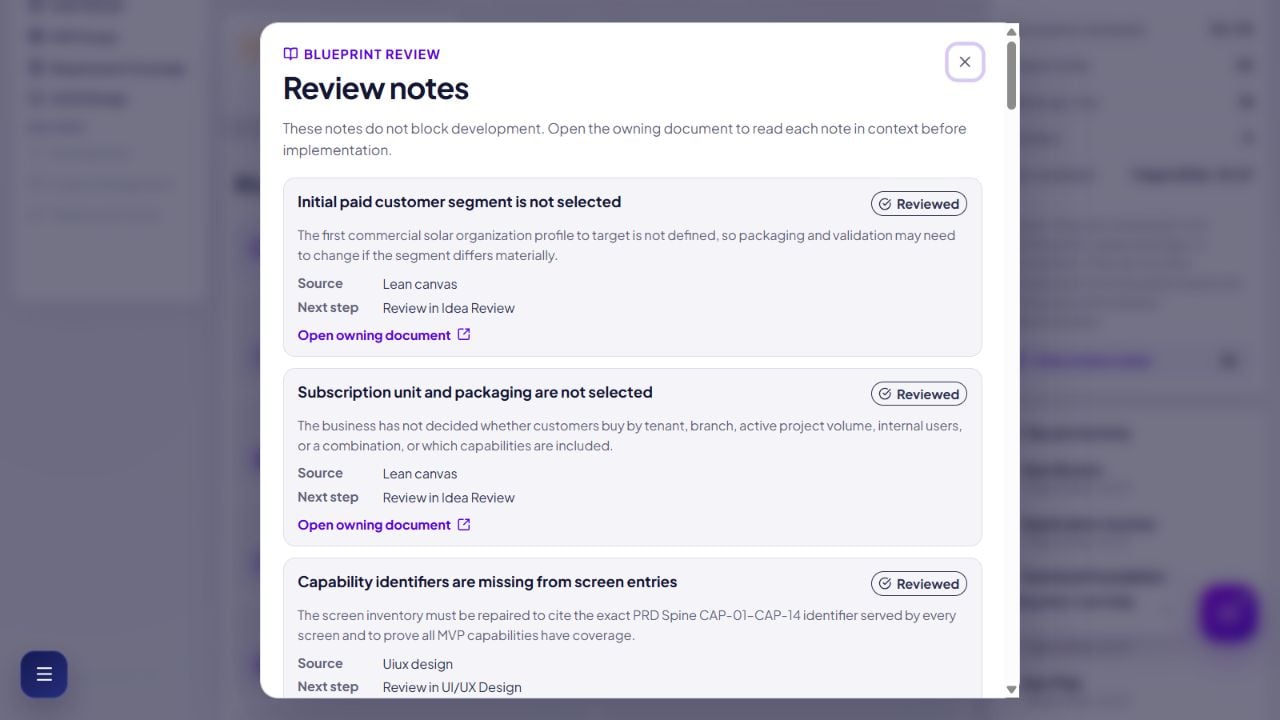
Reviewed cards and the review-notes dialog.
7. Revise with one or several Assistant proposals
Use the Blueprint Assistant to ask a question or request a correction. A response does not change documents until you apply a proposal.- Open Review proposal, then use Apply proposal for one isolated proposal.
- Stage related proposals and use Apply all to regenerate their affected documents as one consistent batch.
- After regeneration, wait for generation to finish and review each changed current version again.
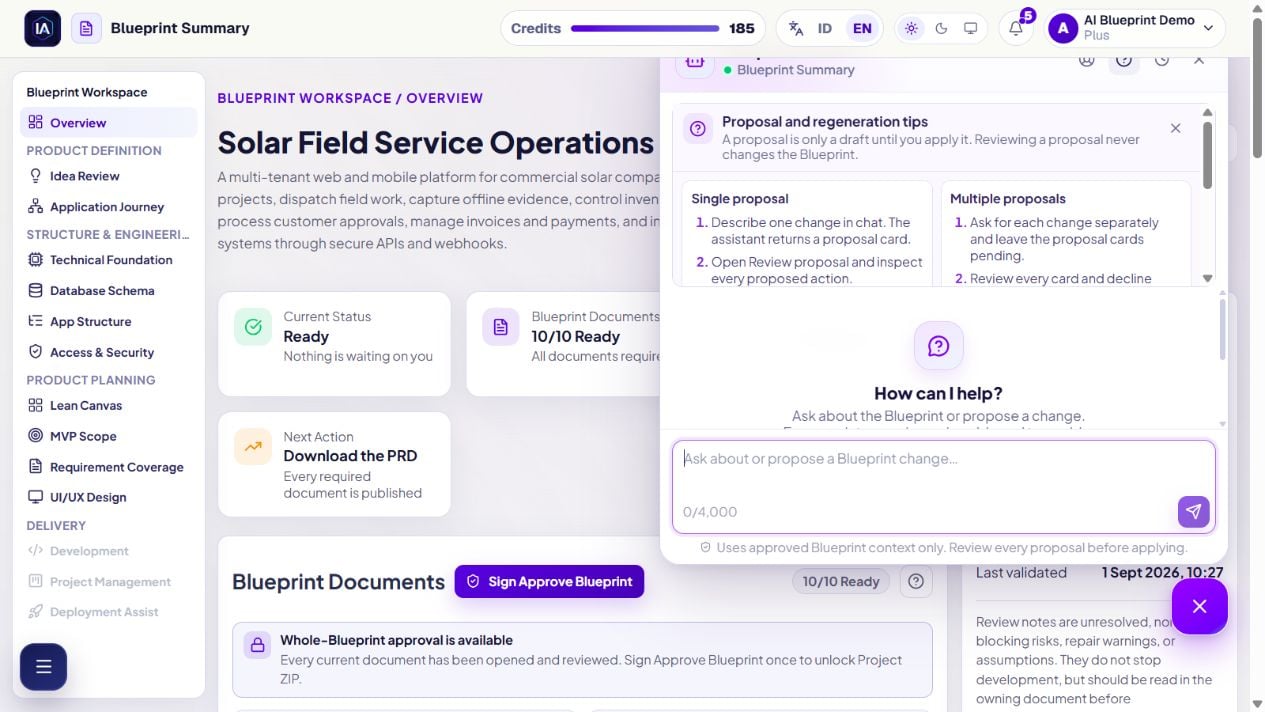
Assistant guidance for single and multiple proposal workflows.
8. Approve the complete Blueprint and unlock Project ZIP
When generation has finished, all current documents are Reviewed, and no Needs Repair or Blocked item prevents approval, select Sign Approve Blueprint in Blueprint Documents. This single global approval unlocks Export Project ZIP for the exact current document set. Regeneration, restore, or a new current version can supersede that approval and lock export again.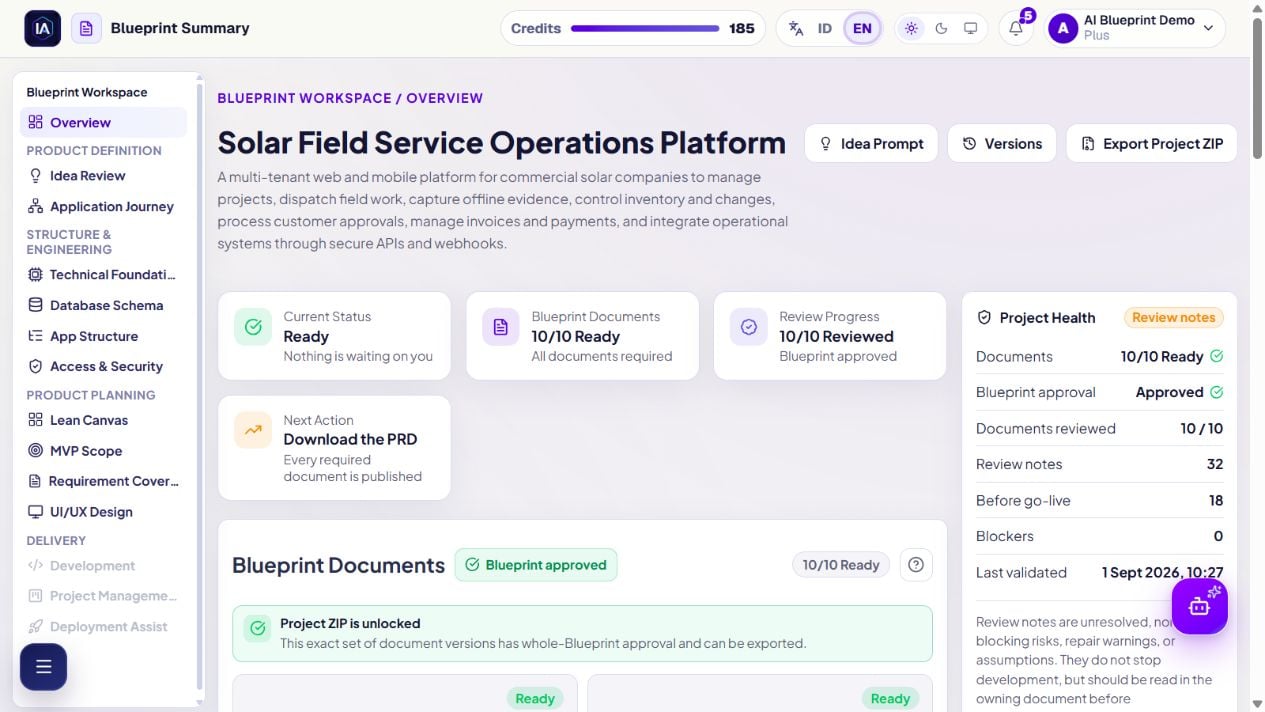
Global approval and Project ZIP availability.
9. Recover a stopped run or contact Support
If the server records a stopped generation incident, the recovery card can show a Support ID and one Retry action. Use Retry once. If it is unavailable or the process stops again, select Open Support. The Support form carries the Blueprint and Support ID when available. Your submitted case appears in Support history, while the conversation continues by email.
Stopped-run recovery with a sanitized Support ID.