

The ordinary free preview is read-only and does not include the Blueprint Assistant. An active paid plan or valid trial-credit access is required. Direct edits remain free when that workspace access is active.
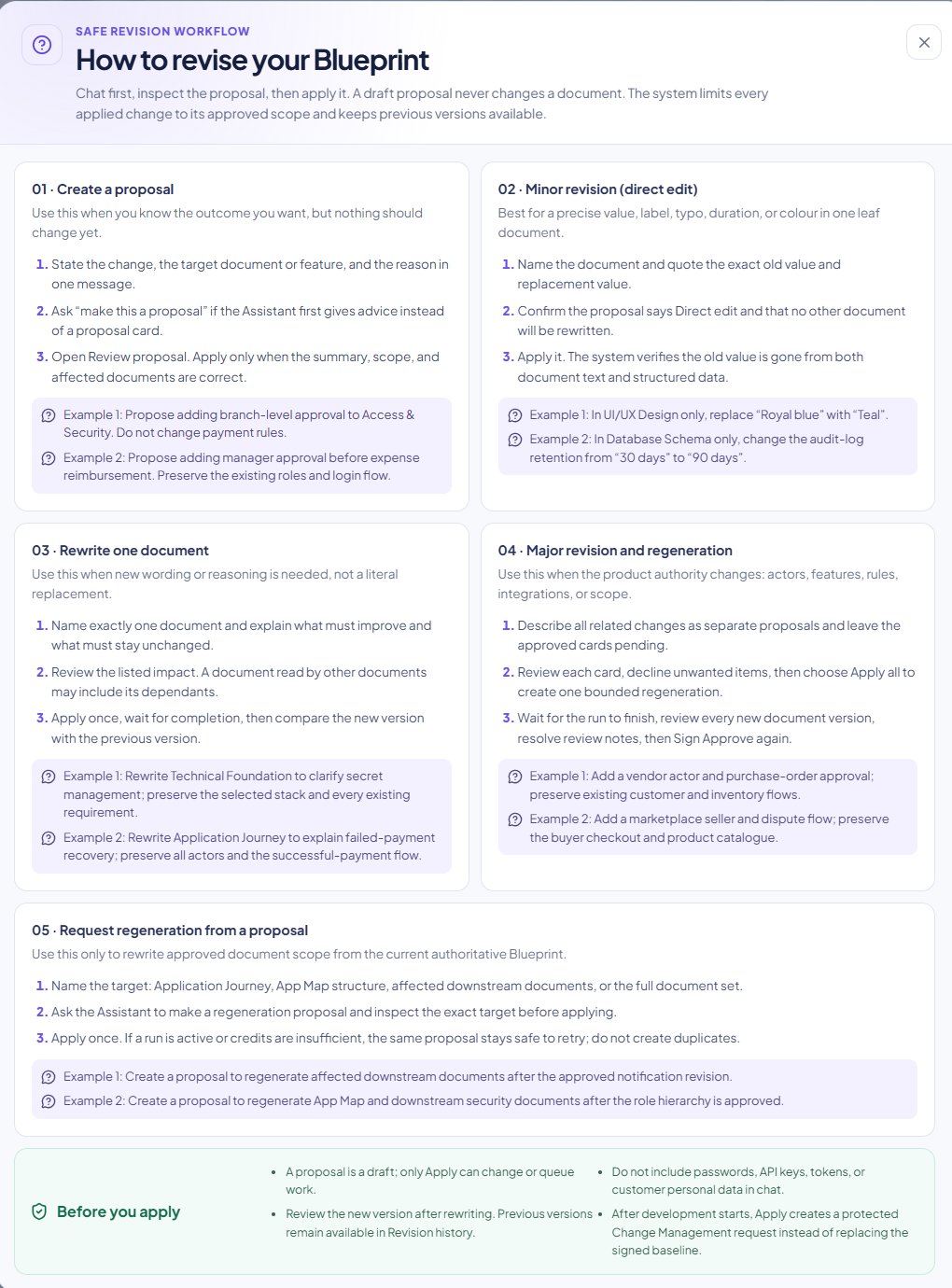
The in-product revision guide summarizes the five supported revision paths and the checks to make before applying.
Ask, review, apply
1
Ask a question or request a change
State the desired outcome, target document or feature, reason, and anything that must remain unchanged. If the Assistant gives advice instead of a proposal card, say make this a proposal.
2
Review the proposal card
Open Review proposal. Check its summary, scope, impact, action type, affected documents, and displayed credit cost. Nothing changes at this stage.
3
Decline or keep it pending
Decline proposals you do not want. You can leave valid proposals pending while you add related changes.
4
Apply one or apply all
Use Apply proposal for one correct proposal. When two or more related proposals are waiting, review each card, decline unwanted items, then use Apply all so the accepted set runs as one consistent batch.
5
Review regenerated documents
Regeneration supersedes the whole-Blueprint approval and locks Project ZIP. Open every changed current version so it becomes Reviewed, then return to Blueprint Summary and use Sign Approve Blueprint once for the complete current set.
Choose the correct revision path
Direct edit verification
After a direct edit completes, open the current document and confirm that the old value is gone from both the readable document and any structured field shown by the workspace. A direct edit is deliberately narrow; use a rewrite or regeneration when the meaning or document structure must change.Rewrite and regeneration verification
Wait for the active run to finish before applying another change. Compare the new version with the previous one, review every affected document, and resolve any new review notes. If credits are insufficient, keep the proposal and retry it after adding credits; do not create duplicate proposals.Single and multiple proposals
Use a single proposal for an isolated change, such as renaming an actor or correcting one rule. Stage several related proposals when one decision affects permissions, workflow, and acceptance criteria together.Direct edits and AI-backed revisions
A literal direct edit that does not call AI is free. An AI proposal or rewrite can use credits. The interface shows the applicable action before you commit it.Two kinds of history
- Revision history inside the Assistant records conversation-level context revisions.
- Blueprint versions records the whole set of generated documents as one recoverable version.
Before you apply
- A proposal is only a draft; only Apply can change a document or queue a rewrite.
- Never include passwords, API keys, tokens, OTPs, or customer personal data in Assistant chat.
- Previous document versions remain available from version history after a rewrite.
- After development has started, an applied change can become a protected Change Management request instead of replacing the signed baseline. Review that request and its implementation impact before continuing.