

When a version is recorded
A version can be recorded after the first generation, a revision, regeneration, repair, or rollback. The version list shows the trigger, time, changed documents, and the version currently in use.Restore an earlier version
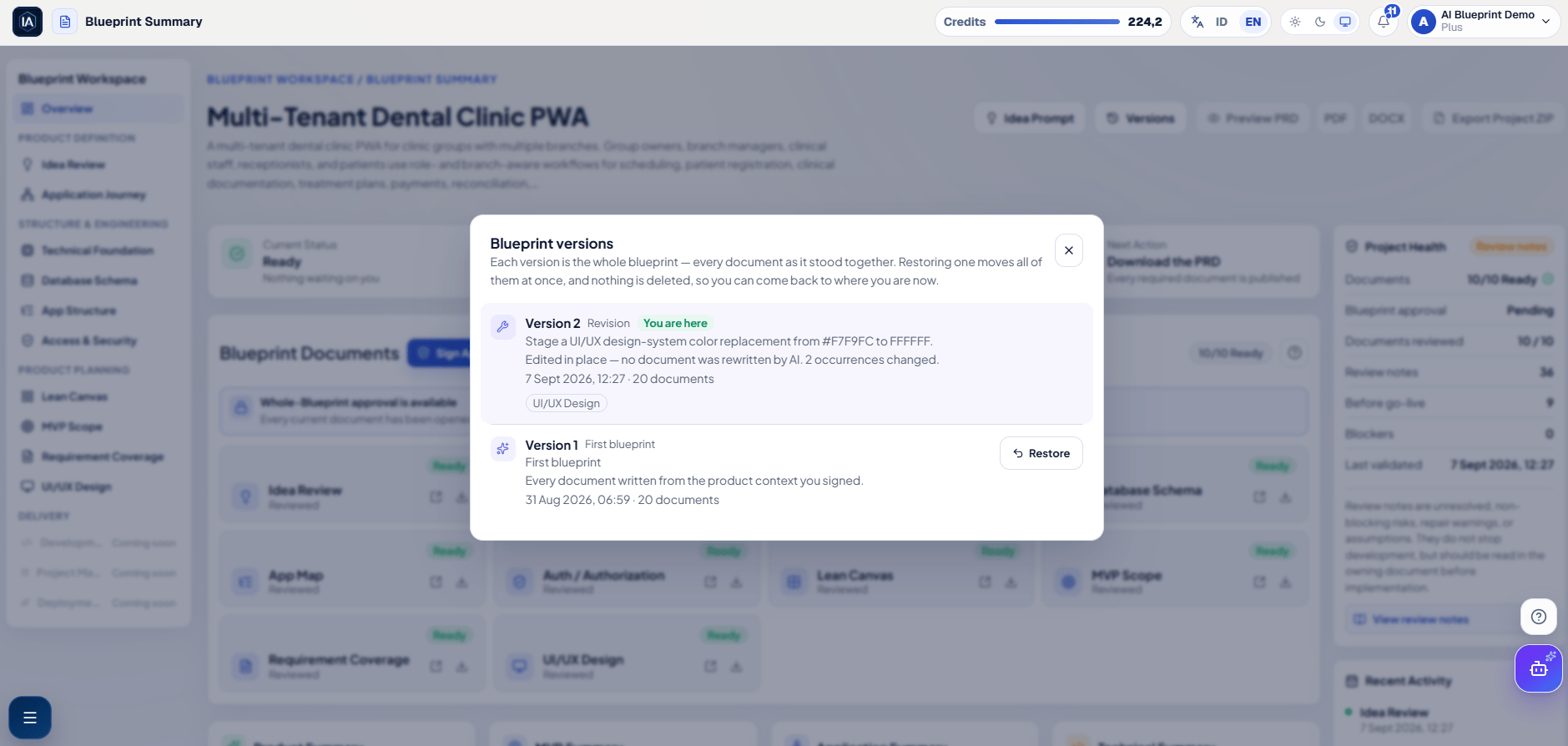
Versions shows the complete document set for each saved Blueprint state and the version currently in use.
1
Open Versions
From Blueprint Summary, select Versions.
2
Inspect the target version
Check its description, trigger, date, and changed-document list.
3
Select Restore
Restore is disabled while documents are being rewritten. Wait for regeneration to finish before retrying.
4
Review the restored set
The restore creates another append-only history entry. All 10 restored document cards, including any Not Required stub, must show Reviewed for the current version.
5
Approve the Blueprint again
Resolve any repair or blocker, then select Sign Approve Blueprint in Blueprint Documents.
What changes after Restore
- Restore switches the complete Blueprint document set; it is not a single-document undo.
- The version you leave remains in append-only history, so you can restore it again later.
- The restored set becomes the current version and must be reviewed as a set.
- Previous global approval no longer applies. Project ZIP remains locked until the restored current documents meet the review checks and you complete Sign Approve Blueprint again.
Restore does not delete the version you are leaving. It invalidates approval of the previous current set and locks Project ZIP until you review and approve the restored set. You can move forward again by restoring a later version.